Yes. Apple Passwords is also an authenticator app: it generates the six-digit verification codes that websites ask for when you turn on two-factor authentication (2FA), and Safari can fill them in for you. Apple’s password manager has made these codes since macOS Monterey, and since macOS Sequoia 15 they live in the Passwords app.
Whether you should keep every code there is a different question. Here’s how to set it up, where your codes work, the honest trade-off of keeping codes next to passwords, and how to make sure a lost device doesn’t lock you out.
The short answer
- Apple Passwords generates 2FA codes on macOS Sequoia 15 and later, and syncs them to your other Apple devices through iCloud Keychain.
- To add one, select the account in Passwords, click Edit, then Set Up Code, and paste the site’s setup key.
- Codes next to passwords still stop leaked passwords, but anyone who gets into your password manager gets both factors.
- Save each site’s recovery codes somewhere separate, before you need them.
- Switching authenticators? Keep the old one until every new code works.
Does Apple Passwords have an authenticator?
It does. When a site offers an “authenticator app” option for 2FA, it gives you a secret, as a QR code or a text setup key. An authenticator turns that secret into a fresh code, usually every 30 seconds. Apple Passwords does exactly this and calls them verification codes. The app keeps passwords, passkeys, Wi-Fi passwords, and verification codes in one place, according to Apple’s overview of the Passwords app.
What you need:
- A Mac with macOS Sequoia 15 or later for the Passwords app. On macOS Monterey through Sonoma, the same codes live in the Passwords section of System Settings (System Preferences on Monterey).
- iCloud Keychain, if you want your codes on your iPhone, iPad, and other Macs too. The Passwords app arrived on iPhone and iPad with iOS 18 and iPadOS 18.
- A site that supports authenticator codes. Look for “authenticator app” or “TOTP” in its security settings.
What it doesn’t do: approve push sign-in prompts, or stand in for services that insist on their own app. Codes sent by text message are a separate thing, too. Safari can suggest those from Messages, but they aren’t stored in Passwords.
How to set up a verification code on Mac
These steps follow Apple’s guide to verification codes. Save the account’s password in Passwords first, so the code has an entry to live in.
- On the website or app, open its security settings and turn on two-factor authentication with an authenticator app.
- When it shows a QR code, choose the option to enter a setup key manually (often labeled “Can’t scan it?”), and copy the key.
- Open the Passwords app, select the account for that site, and click Edit.
- Click Set Up Code, paste the key into the Setup Key field, and click Use Setup Key.
- Click the new verification code to copy it, paste it on the website to finish, and save the recovery codes the site offers.
Depending on your macOS version, Set Up Code may also let you choose a QR code image instead of pasting a key. If a QR code won’t read, the setup key is the dependable route.
Where do your codes work?
In Safari on your Mac, the code appears as an AutoFill suggestion when a site asks for it. Anywhere else, open Passwords, select the account, and click the code to copy it.
| Where | How you get the code |
|---|---|
| Safari on Mac | Click the AutoFill suggestion, or copy it from Passwords |
| Other browsers and apps on Mac | Copy it from Passwords. For sign-ins in other browsers, Apple offers extensions under Passwords › Get Browser Extension |
| iPhone and iPad | Synced through iCloud Keychain, with a suggestion above the keyboard |
| Windows PC | Through iCloud for Windows, which can fill codes in Chrome, Edge, and Firefox |
Your codes are only as available as your devices. If you sign in on a borrowed computer, you’ll need one of your own devices nearby to read the code.
Should you keep 2FA codes next to your passwords?
This is the real question, and the honest answer is “it depends on the account.”
Two-factor authentication is meant to combine two different things: something you know (your password) and something you have (the device that makes codes). Put both in the same app, behind the same unlock, and you blur that line.
Why it’s still a big step up
Many account takeovers start with a password that leaked in a breach or was reused somewhere else. A thief who only has that password still can’t produce your code, whether the code lives in Passwords or in a separate app. And because codes in Passwords cost you almost nothing at sign-in, you’re more likely to turn 2FA on everywhere.
Where separation wins
If someone gets into your password manager itself, for example through your unlocked Mac or your Mac’s login password, they get both factors at once. A separate authenticator, ideally on a different device, keeps one factor out of their reach.
A sensible middle ground
- Use Passwords for everyday accounts, where convenience means you’ll actually turn 2FA on.
- For the few accounts that can reset everything else, like your main email and your bank, consider a separate authenticator or a hardware security key where the service supports one.
- Where a site offers passkeys, use them. They’re designed to resist phishing, and Passwords stores them too.
- Protect the Mac itself with a strong login password and a screen that locks when you walk away.
One more thing to know: codes can be phished. If you type one into a convincing fake page, an attacker can use it within seconds. Passkeys are built to avoid that problem.
Recovery codes: save them before you need them
When you turn on 2FA, most sites show a set of one-time recovery codes (also called backup codes). Each one lets you in once without an authenticator code. They’re your way back if you lose your authenticator, so treat them like a spare house key.
- Save them the moment the site shows them. Some sites only show them once.
- Keep at least one copy away from your authenticator: printed and filed at home, or in a separate encrypted place.
- If you also keep a copy in your password manager for convenience, remember it’s the same trade-off as above. Whoever opens that app gets your way back in too.
- Cross off each code as you use it, and generate a fresh set when you run low.
If an account lets you add a backup phone number or a second sign-in method, add it. Two ways back in beat one.
What happens if you lose your Mac or iPhone?
It depends on where your codes live.
Codes in Apple Passwords
With iCloud Keychain on, your codes are on every Apple device signed in to your Apple Account, so losing one device loses nothing. Keep signing in from the others, and use Find My to lock or erase the missing one.
If you lose every device, Apple says iCloud Keychain can still be recovered: on a new device you sign in with your Apple Account, respond to a text sent to your trusted phone number, and enter the passcode of one of your old devices (how iCloud Keychain recovery works). Keep that trusted number up to date, and consider adding a recovery contact to your Apple Account.
Codes in a local-only authenticator
An authenticator that keeps codes on one device and nowhere else is the most private option, and the least forgiving. Lose that device without a backup and the codes are gone, so you’ll need recovery codes or each site’s account recovery process to get back in.
Whichever you choose:
- Keep recovery codes for every account somewhere other than your authenticator.
- Back up a local authenticator to a file, and keep a copy off that device.
- Before you wipe, sell, or trade in a device, check that your codes exist somewhere else.
How to move from Google Authenticator or Authy
There’s no reliable one-click import, so set aside an evening.
Google Authenticator can export accounts as a special QR code (Transfer accounts). Some people report that Passwords on iPhone reads it, while others, including Mac users on macOS Sequoia, get an error. Try it if you like, but don’t count on it. Authy doesn’t offer an official export, and unofficial export tools aren’t worth the risk.
The route that always works is to set up 2FA again, one account at a time:
- Sign in to the site and open its two-factor settings.
- Choose to change or reset your authenticator app. On some sites, that means turning 2FA off and on again.
- Add the new setup key to Passwords and confirm with the new code.
- Save the fresh recovery codes the site gives you.
- Once that account works, remove its old entry from your previous app, then move on to the next.
Resetting 2FA on a site usually stops the old app’s code for that site from working. Do one account at a time, and don’t delete your old app or its account until every site is moved.
A local-only option: MacTodo’s private vault
If you’d rather keep 2FA codes off iCloud entirely, or apart from the passwords Safari fills in, a local authenticator on your Mac is an option. MacTodo’s private vault is one, and it’s part of MacTodo Pro.
In MacTodo: The vault makes two-factor codes from a setup key, an otpauth:// link, or a QR code read from a screenshot or the clipboard. Everything is encrypted with AES-256-GCM on your Mac and opens with your vault password, or Touch ID on Macs that have it. The vault locks itself after inactivity, when your Mac sleeps, and when you quit. Custom fields hold recovery codes and PINs, and copied secrets clear from the clipboard after 30 seconds (you can change that).
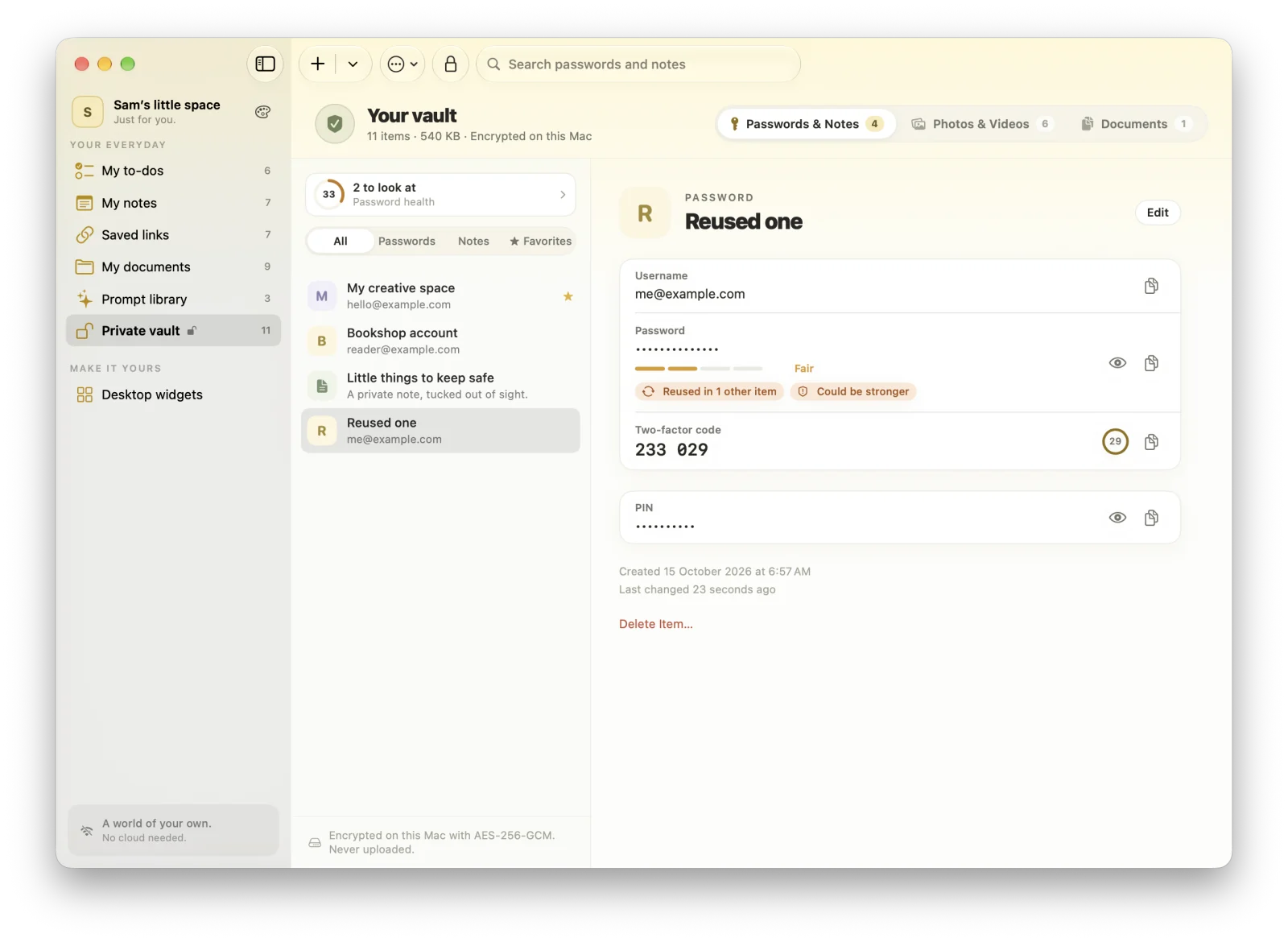
Be clear about the limits. The vault lives on one Mac: there’s no iPhone app, no sync, and no browser autofill, so you copy codes by hand. Your vault password can’t be recovered. Make an encrypted vault backup (a single file protected by a password you choose), keep a copy off your Mac, and keep recovery codes somewhere else too. The FAQ explains what MacTodo does and doesn’t send over the network.
If you need your codes on your phone, Apple Passwords or another synced authenticator is the better fit. And if you’re cutting back on iCloud more broadly, see how to use Apple Reminders without iCloud.