Yes, you can use Apple Reminders on a Mac without iCloud, but only a reduced version of it. Apple says every feature in its Reminders guide works with updated iCloud reminders, and that some aren’t available with other accounts. Without iCloud you give up custom Smart Lists, tags, subtasks, list groups, shared lists, and syncing to your iPhone through iCloud.
Here’s what each of those means, what still works, how to turn iCloud Reminders off without losing anything, and what to use if you’d rather your list never touched the cloud at all.
The short answer
- Reminders works without iCloud, but custom Smart Lists, tags, subtasks, list groups, and shared lists all need updated iCloud reminders.
- Turning off Reminders in iCloud settings doesn’t delete anything from iCloud. Your reminders stay on your other devices and iCloud.com, but that Mac can’t see them.
- Apple doesn’t document a local-only mode for current macOS, so save a copy of your lists (File › Print › Save as PDF) before you switch.
- On a work Mac, your company may have turned iCloud Reminders off, and column view has been reported greyed out without iCloud.
- If you want a private list with no account at all, use a to-do app that keeps everything on your Mac.
What are updated iCloud reminders?
Since macOS 10.15 Catalina, Apple has offered a newer format for the reminders you keep in iCloud. It calls them updated iCloud reminders, and most of what makes the modern Reminders app useful is built on them:
- Custom Smart Lists that gather reminders by tag, date, time, priority, flag, location, or list
- Subtasks, so a reminder can hold its own little checklist
- Tags, typed with a # in the title or notes
- List groups, for folding related lists together in the sidebar
- Shared lists, with other people who have also updated their iCloud reminders
A few things to know about the update, from Apple’s own guide:
- It can’t be undone. Once your iCloud reminders are updated, they stay updated.
- It only changes reminders in your primary iCloud account. Reminders in other accounts, including a second iCloud account, stay as they were.
- Updated reminders don’t appear in Reminders on devices with older versions of macOS or iOS, or in the iCloud for Windows app. On those, open iCloud.com in a browser instead.
So when people ask whether Reminders works without iCloud, the real question is whether they can live without these features.
What works in Reminders without iCloud?
Reminders still opens, and you can still keep lists of reminders with dates and alerts. What changes is everything built on top of updated iCloud reminders:
| Feature | With updated iCloud reminders | Without iCloud |
|---|---|---|
| Lists and reminders with dates and alerts | Yes | Yes |
| Custom Smart Lists | Yes | No |
| Tags | Yes | No |
| Subtasks | Yes | No |
| List groups | Yes | No |
| Sharing a list | With others on updated reminders | No |
| Sync with iPhone and iPad | Automatic | Only through another account, like Exchange |
| Column view | Yes | Reported greyed out |
The column view row comes from user reports, not from Apple’s documentation, so your Mac may behave differently.
If you need sync but not iCloud, Reminders can use other accounts. Apple’s guide names Microsoft Exchange, Google, Yahoo, and AOL, and adds that if you don’t see Reminders for an account, that provider doesn’t offer it. Add one in System Settings › Internet Accounts and turn on Reminders for it. Expect fewer features than iCloud gives you.
Weighing Reminders against a paid app instead? Our Things 3 vs Apple Reminders comparison covers what each one does on a Mac.
Can you keep reminders only on your Mac?
This is where it gets murky. Apple’s current Reminders guide doesn’t describe a local-only mode, where reminders live on your Mac with no account behind them.
Older Mac books describe keeping reminders locally, just on your Mac, and community reports mention lists labeled “On My Mac”. Reports differ on whether and when those lists appear in recent versions of macOS, and a local list wouldn’t get the features in the table above either way.
So treat local reminders as a convenience, not as a safe home for anything you can’t afford to lose:
- Don’t let a local list be your only copy of something important. Print it to PDF now and then.
- Don’t expect it to follow you to a new Mac on its own.
- If you want a list that’s reliably local and private, use an app built to work that way (more on that below).
Will turning off iCloud Reminders delete your reminders?
Not from iCloud. Apple’s iCloud guide says that with Reminders turned off, you just can’t access your iCloud reminders on that device. They stay in iCloud, on your other devices, and on iCloud.com. Apple’s Reminders guide adds that an account’s lists reappear when you turn Reminders back on.
What you shouldn’t count on is a copy left behind on the Mac. User reports differ here. One person on macOS Sonoma saw their reminders vanish from Reminders and Calendar on that Mac, with no offer to keep a copy. So make your own copy first:
- Open Reminders, select a list in the sidebar, and choose File › Print (⌘P). Choose Save as PDF from the PDF menu. Repeat for each list you care about.
- Open System Settings, click your name at the top of the sidebar, then click iCloud.
- On macOS 15 Sequoia or later, click See All next to Saved to iCloud. On macOS 14 Sonoma, click Show All or Show More Apps below Apps Using iCloud.
- Turn off Reminders, and read any message macOS shows before you confirm.
- Open Reminders and check what’s left. To bring your iCloud lists back, turn Reminders on again.
One more thing: while sync is on, deleting a reminder on your Mac deletes it on your iPhone too. Don’t try to tidy up one device by deleting things.
Lost something? On iCloud.com, open the App Launcher, choose Data Recovery, then Restore Calendars and Reminders to go back to an earlier archived version. Restoring removes sharing from shared lists. Apple’s restore steps walk you through it.
Why is column view greyed out in Reminders?
Column view shows a list’s sections side by side, like a board. If View › as Columns is greyed out, check these in order:
- You’ve selected a Smart List or a group. Apple says column view isn’t available for the standard Smart Lists, like Today and Scheduled, or for a group of lists. Select a regular list instead.
- Your Mac is older than macOS 14 Sonoma. Sections and column view arrived in Sonoma.
- The list isn’t in iCloud. Apple notes that some features aren’t available with accounts from other providers, and a user on a company-managed Mac with no iCloud found column view greyed out. If your list lives in another account, or on a Mac without iCloud, that’s the likely reason.
Reminders on a work Mac or Managed Apple Account
On a Mac your company manages, iCloud Reminders may simply not be an option. Apple’s deployment guide says organizations can turn off certain iCloud services on managed devices, and admins can switch off individual iCloud services for Managed Apple Accounts.
If that’s your situation:
- Ask IT before signing your personal Apple Account in on a work Mac. Your company may not allow it, and it would put your personal reminders on a work machine.
- If your work email runs on Microsoft Exchange, look in System Settings › Internet Accounts. Apple lists Exchange among the accounts Reminders can use, as long as your company’s server offers it.
- For a private work list that needs no account at all, a local-only to-do app sidesteps the question, if your IT team lets you install apps.
Reminders not syncing between your Mac and iPhone?
If you do use iCloud and a reminder isn’t showing up on your other device, run through this list:
- Both devices are signed in to the same Apple Account.
- Reminders is turned on in iCloud settings on both.
- Both run a version that can open updated reminders: macOS 10.15 or later, or iOS 13 or later. Older devices can’t see them at all.
- The reminder is in an iCloud list, not in a list from another account like Exchange, which syncs on its own.
- Check iCloud.com. If the reminder is there, the device that’s missing it is the problem. If it isn’t, it never left the device you made it on.
A private to-do list that needs no account
Maybe the real goal is a to-do list that doesn’t live in anyone’s cloud. Then you can skip the workarounds and use an app made to work offline.
MacTodo is a free, native to-do list app for Mac that keeps everything on your Mac. There’s no account to create and nothing synced to a server. The free version covers what most people use Reminders for:
- Reminders typed the way you’d say them, like
Call mum tomorrow 6pm, with native notifications you can mark done or snooze for an hour - Repeats, steps inside a to-do, priorities from ! to !!!, and categories
- A menu bar list of today’s to-dos, and a quick-add panel on
⌃⌥Space - Desktop widgets, including one where you check off to-dos right on the desktop
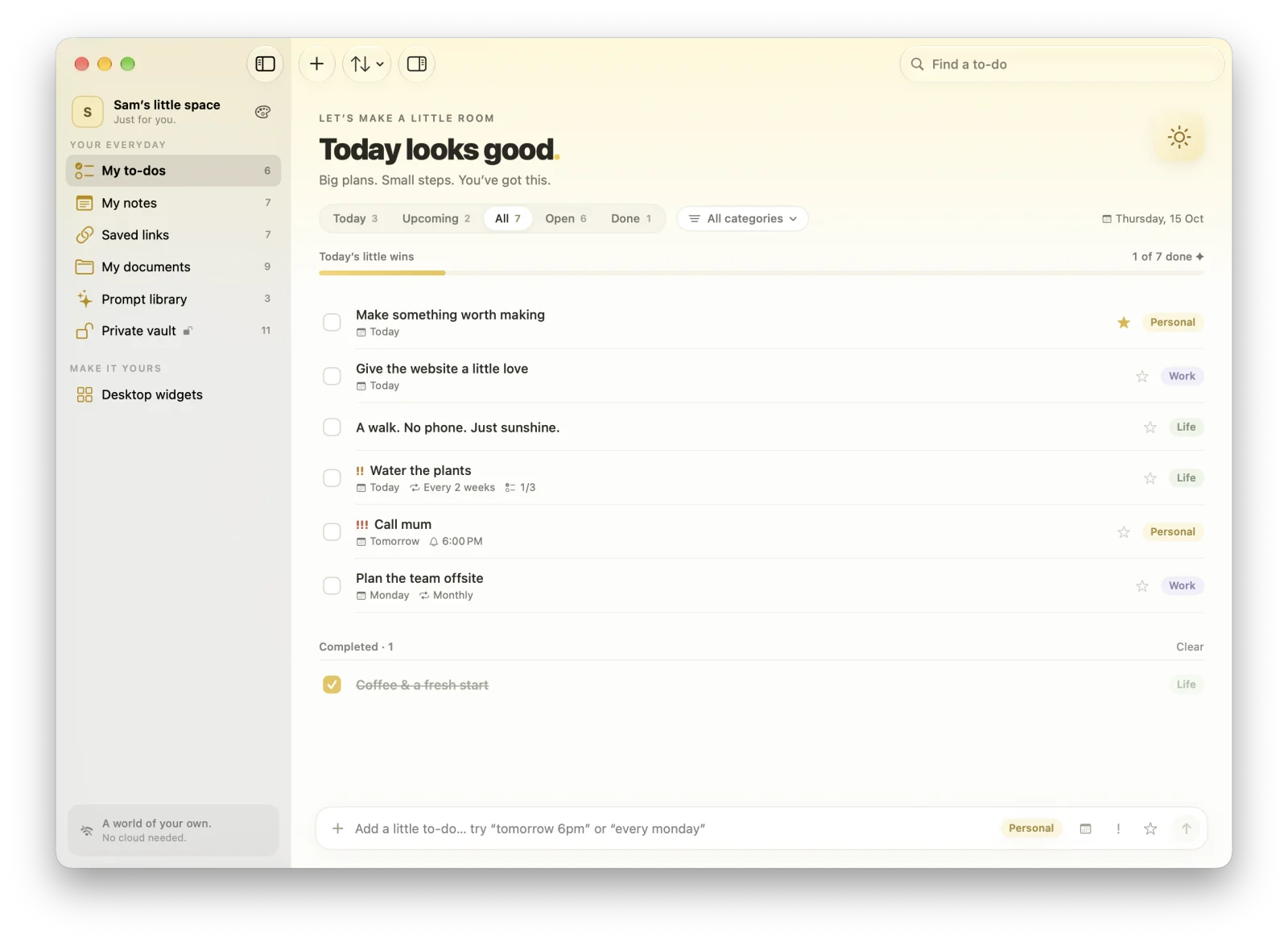
In MacTodo: The honest trade-off: MacTodo has no iPhone app and no iCloud sync, on purpose. If you need your list on your phone, Reminders with iCloud is the better choice. To move to another Mac, back up to a file and restore it there. MacTodo’s FAQ explains exactly when the app goes online. And if you want passwords and private files kept the same way, MacTodo Pro adds an encrypted private vault.
Want to compare more options first? See the best Apple Reminders alternatives for Mac, or our guide to choosing the best to-do app for Mac.